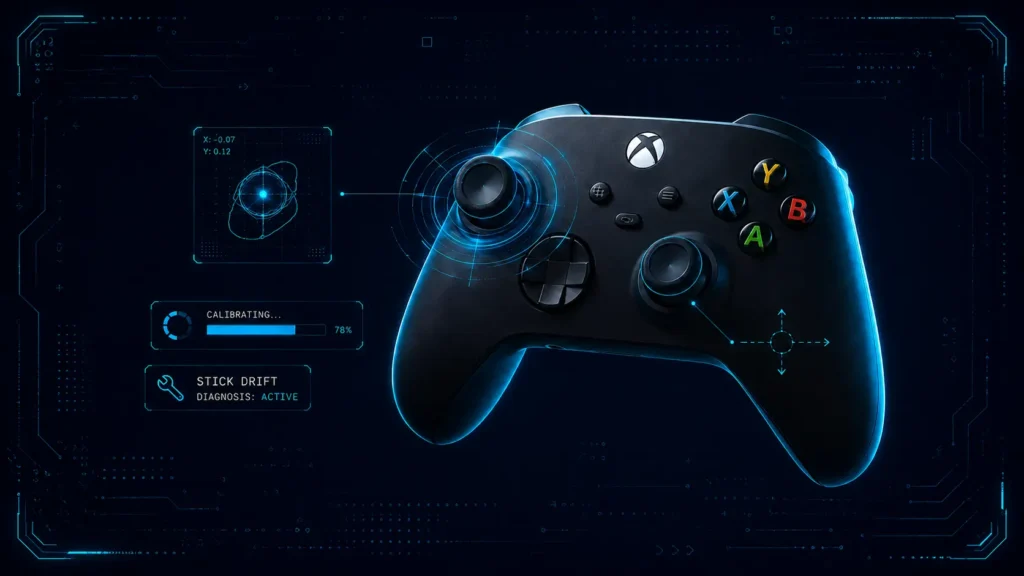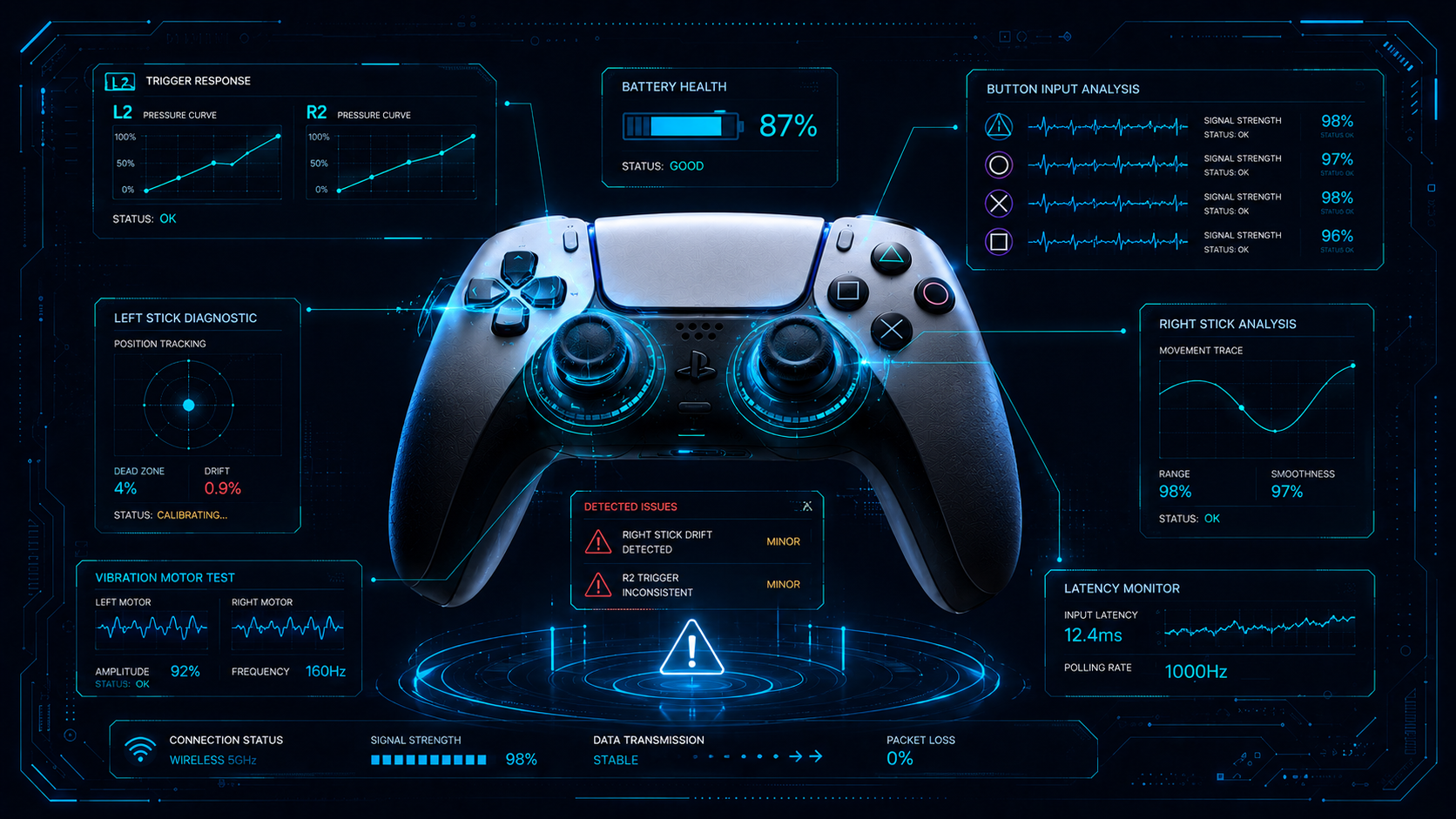
TMR Controller Drift Setup Guide

How to Test TMR Controller for Drift: Step-by-Step Guide

Quick Answer:

Here is how to test a TMR controller for drift. Connect your pad to Joypad Tester and keep both sticks still for ten seconds. If the dot moves, you may drift. Next, spin each stick in a slow circle. A smooth round trail is a good sign. Flat spots or jumps need a closer look.

Introduction:

Knowing how to test a TMR controller for drift can save you money. Maybe your camera slides or your character walks on its own. That is stick drift. Many players think magnetic sticks cannot drift. That is not entirely true.

This guide uses the GameSir Cyclone 2 as an example. It has Mag-Res TMR sticks. You will run a rest test, a circle test, and a game check. Then you will learn how to read your numbers and what to try next.

What Is TMR Controller Stick Drift?

TMR stands for tunneling magnetoresistance. These sticks track a small magnet inside the stick. A sensor reads how that magnet moves.

Drift means the controller sends input while you touch nothing. Your player may creep forward. A menu may jump around.

A TMR controller can still drift. Bad calibration, dust, worn parts, or firmware bugs can all cause it. A tester shows the input. It cannot show the cause.

TMR vs Hall Effect: What Is the Difference?

Both sensor types use magnets, so neither wears like an old potentiometer stick. The main difference is how the sensor reads the magnet. Hall effect sensors read the magnetic field as a voltage. TMR sensors read it as a change in electrical resistance, which can be more sensitive. GameSir says its Mag-Res TMR sticks pair low power use with high durability. Still, neither type is drift-proof, so test both the same way.
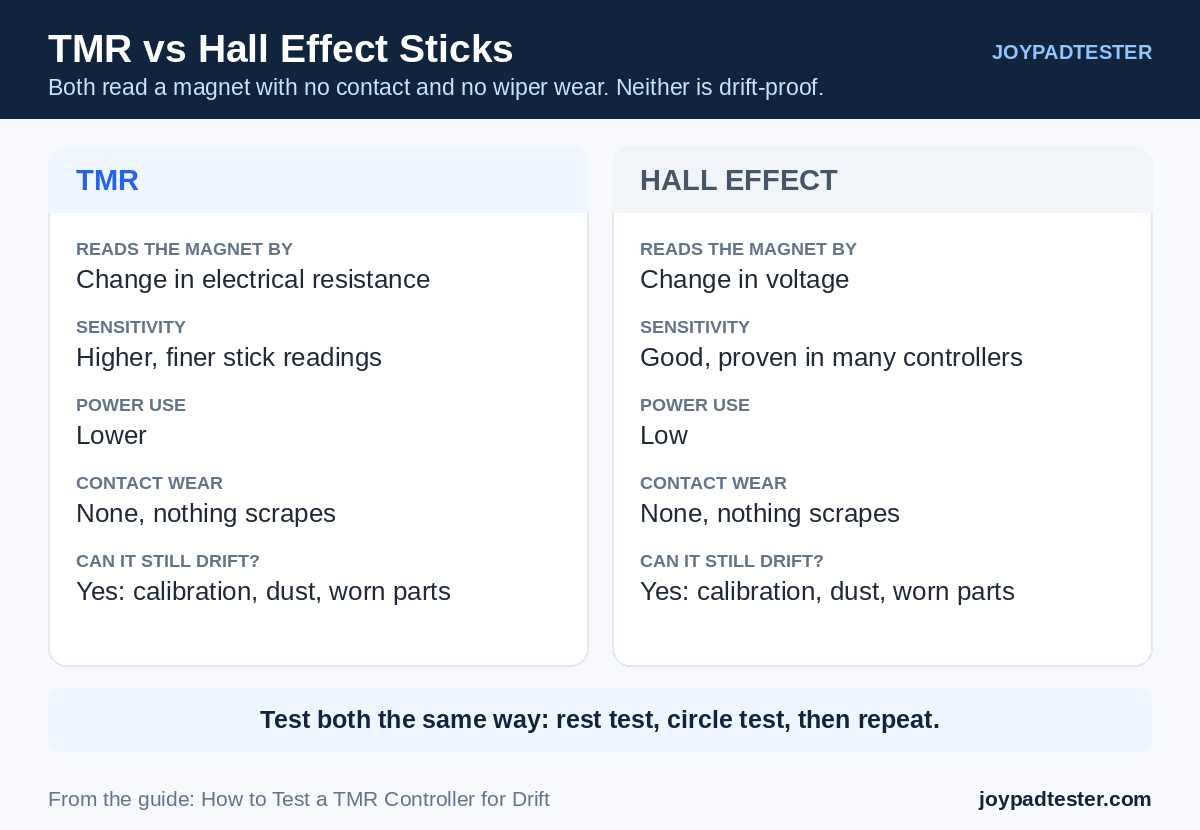
TMR vs Hall effect sticks compared: sensitivity, power use, contact wear, and drift risk

What You Need for a TMR Joystick Test

  • A TMR controller with enough battery, such as the GameSir Cyclone 2
  • A PC with an up-to-date browser
  • A USB cable or a steady Bluetooth link
  • An online gamepad tester like JoyPadTester

Start with the cable. It rules out wireless problems

How to Test TMR Controller for Drift Step by Step

Step 1: Connect the Controller

Plug the Cyclone 2 into your PC with a USB-C cable. Bluetooth works too, but wired is steadier.

Step 2: Open the Online Gamepad Tester

Open JoyPadTester in your browser. Press any button so the page can see your pad. Online testers rely on the Gamepad API, which lets a browser read button and stick input. MDN explains how it works in its Gamepad API guide.

Step 3: Run the Rest Test

Set the controller on a flat table. Let go of both sticks. Watch the screen for about ten seconds.

This simple controller drift test matters most. A steady dot near the center is normal. A dot that creeps or jumps points to drift. One tiny shift proves nothing, so repeat the test a few times.

Step 4: Run a Joystick Input Test

Test one stick at a time. Push it up, down, left, and right. Let go each time. The dot should follow your thumb and settle near the center. Then repeat with the other stick.

Circularity Test: Spin the Stick and Read the Circle

Push one stick to its edge and spin it in three slow, full circles. Keep the pressure even, then watch the trail.

A good circle looks round and smooth. It reaches the edge all the way around. Some controllers have a notched gate, so slight corners can be normal.

A bad circle tells you something:

  • Flat sides: the stick may not reach full range in that direction.
  • Jagged or wobbly line: the signal may be noisy, or the stick may be loose.
  • Circle shifted off center: the center point is likely wrong, which points to calibration.
  • Gaps or sudden jumps: the sensor or the connection may be failing.

Repeat the test on the other stick and compare the two shapes.

Repeat the Test and Check a Game

Run the rest test again after the circle test. One odd reading means little. A problem that keeps returning matters more. If you can, try both USB and Bluetooth. If the issue shows on only one, blame the connection first.

Then open a game and leave the stick alone. Many games use a deadzone, which ignores tiny stick input near the center. So a tester may show movement you never feel in a game. If drift shows in only one game, check that game’s settings before blaming the hardware.
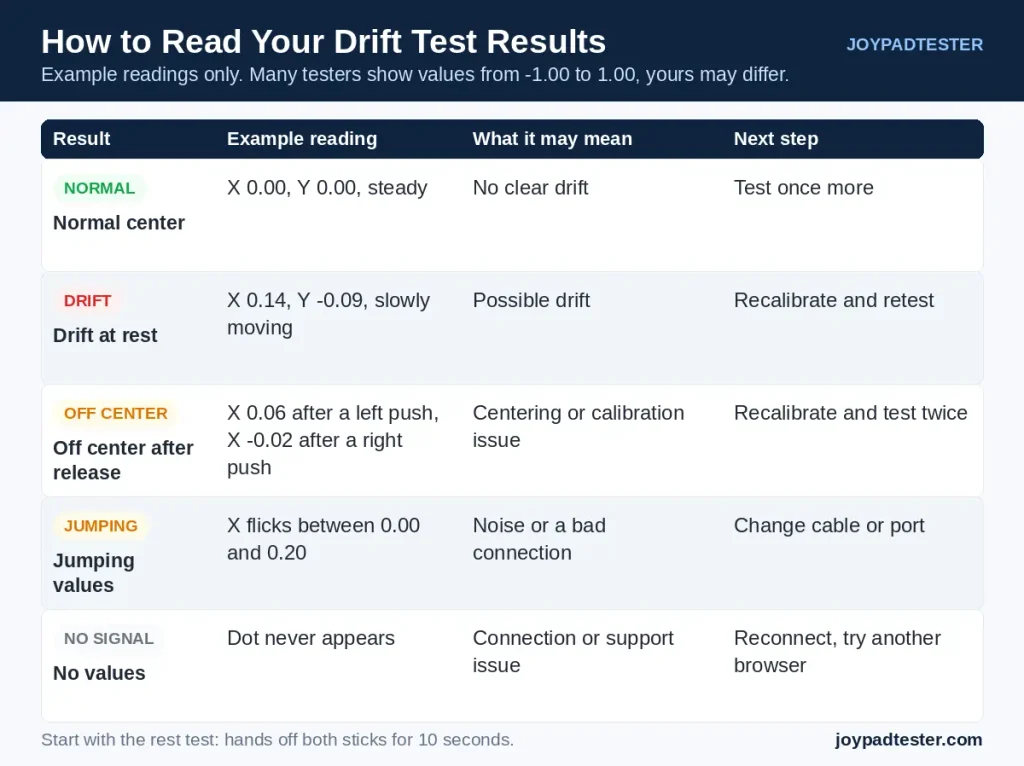
Table explaining controller drift test readings, what each result means, and the next step

TMR Controller Calibration: Official Steps for the Cyclone 2

Calibration helps the controller relearn the center and range of each stick. The GameSir Cyclone 2 manual gives these steps:

  1. Hold the View, Menu and Home buttons together until the Home indicator starts to blink white slowly.
  2. Without touching the triggers or sticks, press the A button.
  3. Press LT and RT all the way down, then rotate both sticks in three full circles.
  4. Press the A button again.

These steps come from the official GameSir Cyclone 2 manual. Other models use different steps, so follow your own maker’s guide. After calibration, run the rest test again.

Other Ways to Fix Stick Drift

  • Reconnect: Unplug the pad, or switch Bluetooth off and on, then test again.
  • Raise the deadzone: A bigger deadzone hides small drift. It does not repair the stick.
  • Contact the maker: If drift stays after many tests, ask the maker or a repair shop. Check your warranty before you open the pad.   

Common Mistakes to Avoid

  • Touching the stick during the rest test
  • Calling every tiny shift a fault
  • Trusting a single reading
  • Treating a deadzone change as a repair

FAQs

How do I test a TMR controller for drift?

Connect the pad, open an online gamepad tester, and leave both sticks alone for ten seconds. Then run the circle test on each stick. Repeat everything a few times before you decide.

Can a TMR controller still develop stick drift?

Yes. Magnetic sensing helps durability, but calibration problems, firmware bugs, dust, and worn parts can still cause drift.

Does a small joystick movement mean drift?

Not always. Small shifts are common, and each controller reports input differently. Test a few times and see if the movement keeps happening.

What is a circularity test?

You spin a stick around its full edge and watch the trail. A smooth round shape is good. Flat sides, jagged lines, or an off-center circle point to a problem.

Can calibration fix TMR controller drift?

It can help when wrong center settings cause the drift. It cannot fix damaged hardware. Follow your maker’s steps for your exact model.

Why is my controller not showing in the tester?

The cable may be loose, or your browser may not have detected the pad. Reconnect it, press any button, or try another browser.

Is TMR better than the Hall effect for stick drift?

TMR can be more sensitive and use less power, but neither type is drift-proof. Real results depend on the stick design, calibration, and build quality.

Conclusion

Now you know how to test a TMR controller for drift in a few minutes. Start with the rest test, then spin each stick and compare the circles. If the readings look wrong, recalibrate with your maker’s steps and test again. Still seeing drift? Contact the maker with your results before paying for repairs. Open Joypad Tester and check your sticks tonight.

Sources: MDN: Using the Gamepad API | GameSir Cyclone 2 Manual
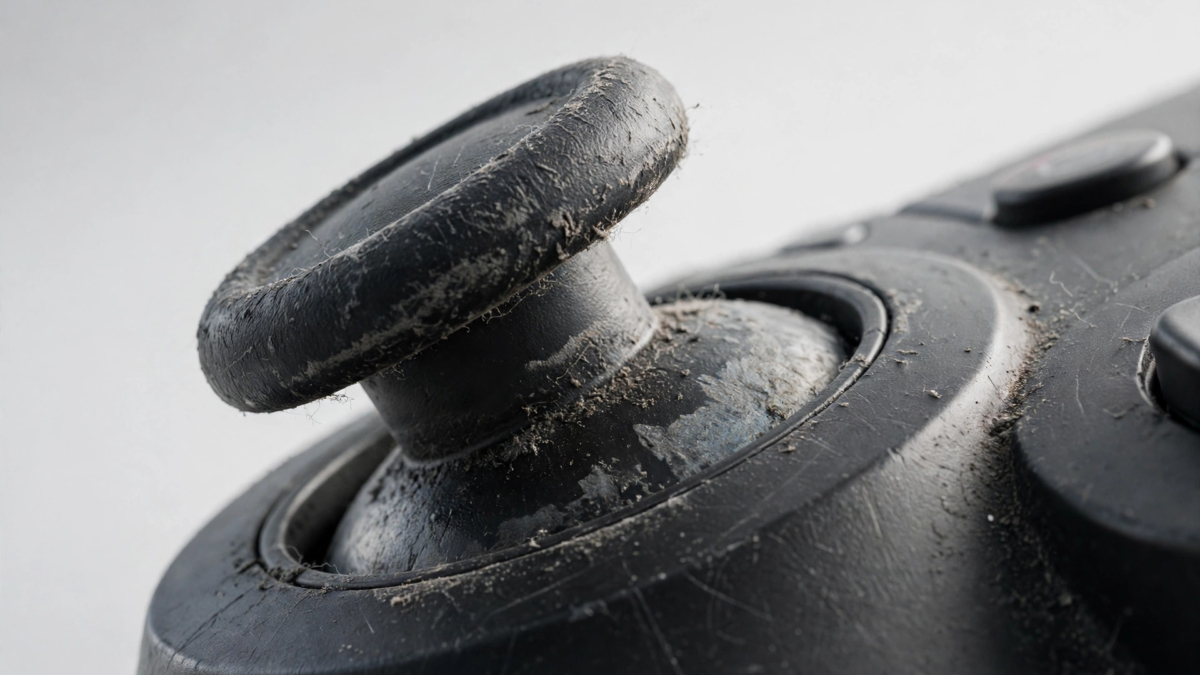
controller-drift-prevention

Controller Drift Prevention: 10 Proven Tips to Extend Controller Lifespan

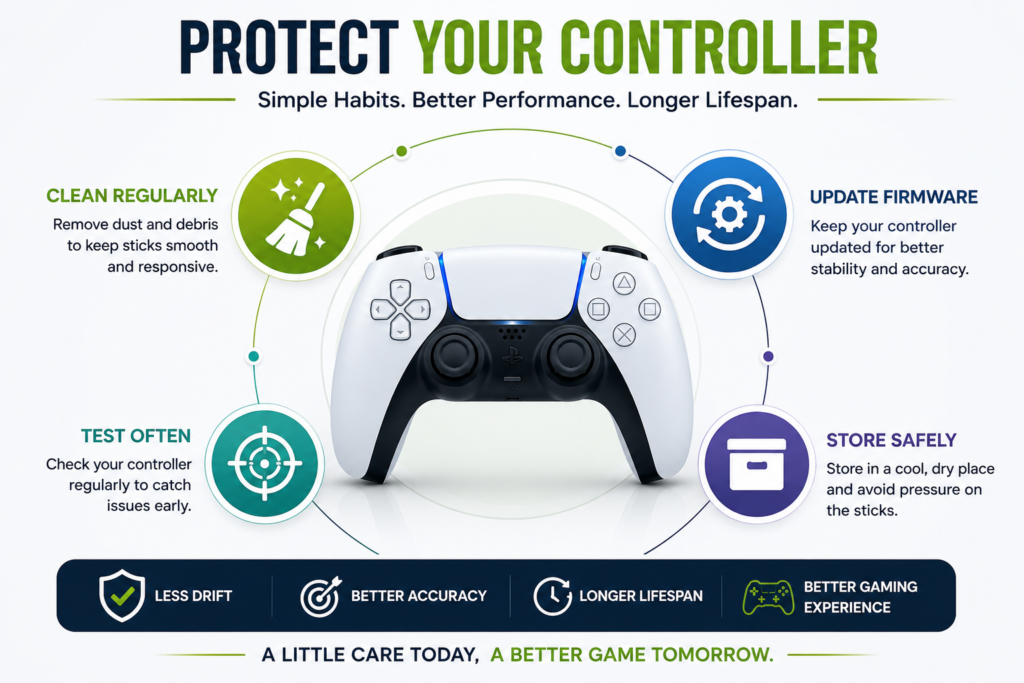
Controller drift prevention starts with simple daily habits: keep your controller clean, avoid excessive stick pressure, store it properly, maintain optimal dead zones, and test it regularly. These maintenance tips help in reducing the need for repairs or replacement and extend controller lifespan.

Why Controller Drift Happens in the First Place

Before you can prevent drift, you need to understand it.

Inside every controller are analog stick sensors—small mechanical components that track movement.

Over time, these components degrade due to:

  • Dust and debris buildup
  • Repeated friction
  • Aggressive stick pressure
  • Environmental exposure
  • Sensor wear

Drift happens when the controller can no longer accurately detect the neutral position.

And once that happens, your input stops matching your intention.

The goal of prevention isn’t perfection.

It’s slowing down that wear process as much as possible.

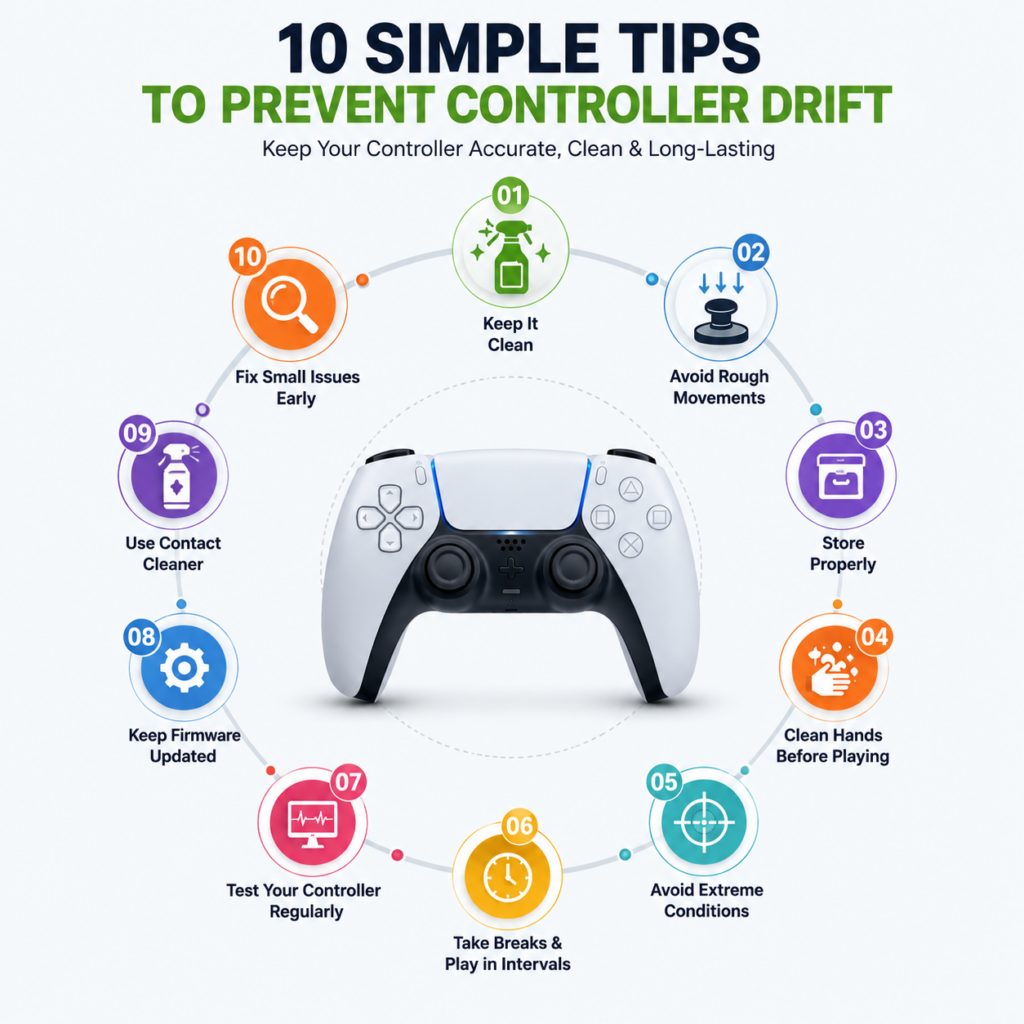
10 Controller Maintenance Tips to Prevent Drift

1. Keep Your Controller Clean (Weekly Habit)

Practical Implications:

Dust is the #1 cause of early drift.

Even clean setups accumulate:

  • Skin particles
  • Fabric fibers
  • Sweat residue
  • Micro dust

These contaminants settle around the analog stick and interfere with sensor readings.

What to Do

  • Wipe your controller weekly
  • Use compressed air around sticks
  • Avoid playing with dirty hands

Consistency here dramatically reduces drift risk.

2. Stop Slamming the Analog Sticks

Key Relevance

Aggressive movements accelerate internal wear.

Competitive gaming often encourages fast reactions—but excessive force damages the potentiometer inside the stick.

What to Do

  • Use controlled movement
  • Avoid snapping sticks harshly
  • Reduce unnecessary pressure

Precision beats force every time.

3. Store Your Controller Properly

Why It Matters

Leaving your controller exposed invites dust, humidity, and contamination.

What to Do

  • Store in a drawer or case
  • Avoid placing it face-down
  • Keep away from food and liquids

Proper storage alone can extend controller lifespan significantly.

4. Wash Your Hands Before Playing

The Big Picture

Oil, sweat, and dirt transfer directly into the stick mechanism.

Over time, this builds up internally.

What to Do

  • Wash hands before long sessions
  • Avoid eating while gaming
  • Wipe hands periodically

This simple habit prevents internal contamination faster than any repair method.

5. Use Moderate Dead Zones

The Core Thesis

Ultra-low dead zones expose tiny imperfections in the sensor.

This makes minor wear feel like major drift.

What to Do

  • Use balanced dead zone settings
  • Avoid extreme sensitivity
  • Adjust based on your controller condition

Balanced settings protect both performance and hardware longevity.

6. Test Your Controller Regularly

Justification

Most drift starts small.

If you catch it early, you can fix it before it becomes permanent.

Using Joypad Tester allows you to test controller drift online and monitor real-time stick behavior.

What to Check

  • Stick movement at rest
  • Dead zone stability
  • Circular motion consistency
  • Input response

Routine testing is one of the most powerful controller maintenance tips available.

7. Optimize Battery Settings for Longer Battery Life

Why it Matters

The rechargeable batteries supply electricity to the wireless controllers, but eventually these batteries will lose power. Poor power management settings and battery-draining habits can cause frequent controller charging. You can adjust battery-saving settings to protect battery health, extend gaming time, and reduce power consumption. 

What to Do

  • Turn the light bar on the controller down.
  • Make sure to turn off or diminish the rumble intensity and haptic feedback.
  • Activate the self-closing feature.
  • In 10 to 15 minutes after no activity has occurred, configure the controller to turn off.

8. Avoid Long Continuous Sessions Without Breaks

The main takeaway

Extended gameplay increases:

  • Heat
  • Moisture
  • Friction
  • Wear

What to Do

  • Take short breaks
  • Let the controller cool down
  • Reduce stress on components

Small breaks protect both you and your hardware.

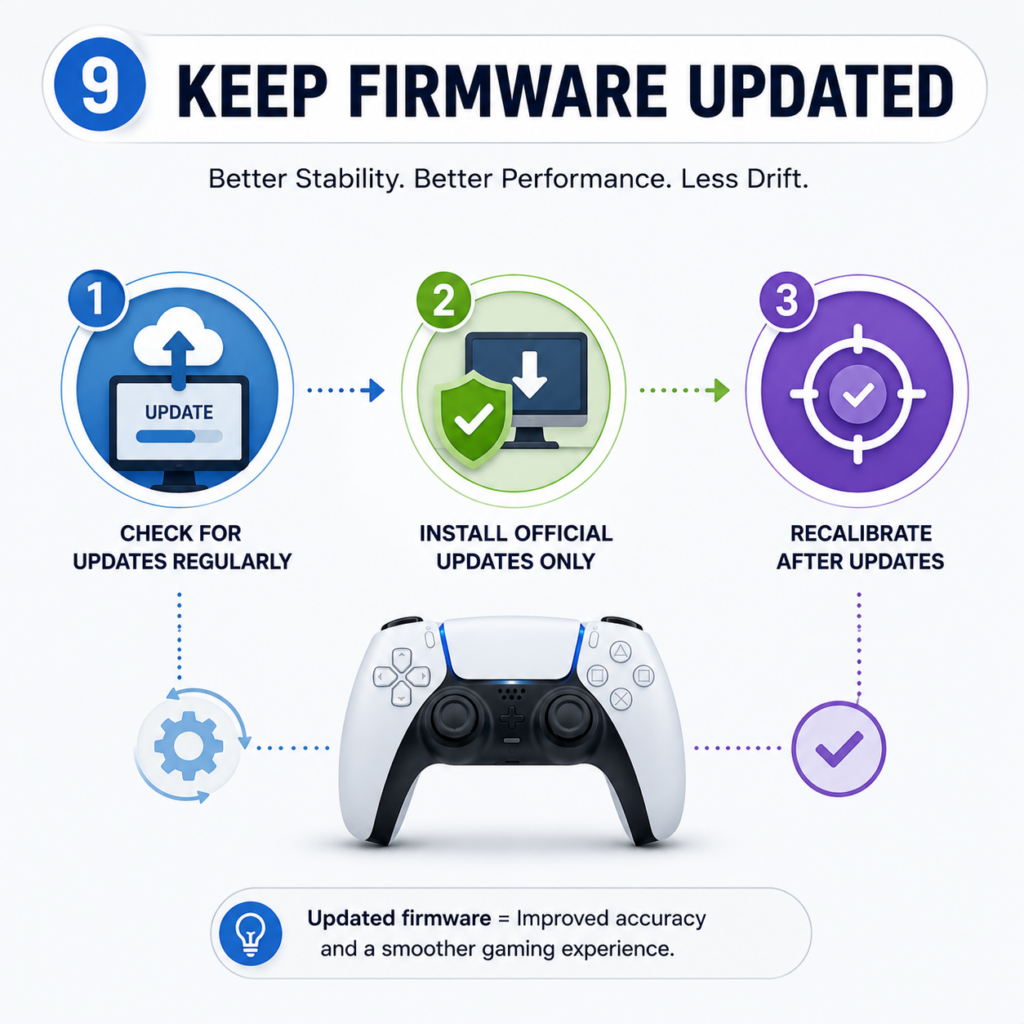
9. Keep Firmware Updated

Core Objective

Sometimes drift isn’t physical; it’s calibration-related.

Firmware updates can improve input stability.

What to Do

  • Check for updates regularly
  • Install official updates only
  • Recalibrate after updates

This helps maintain accurate input interpretation.

10. Address Small Drift Immediately

Why It Matters

Ignoring minor drift is the fastest way to create major drift.

What to Do

  • Clean early
  • Adjust dead zones
  • Test frequently
  • Fix small issues before they grow

Early action saves money and performance.

Controller Drift Prevention Tips: 10 Proven Ways to Extend Your Controller Lifespan

Controller drift can ruin your gaming experience by causing unwanted movement and reducing accuracy. Fortunately, following the right Controller Drift Prevention Tips can help you keep your controller in excellent condition for years. In this guide, you’ll learn practical maintenance techniques, expert recommendations, and simple habits that minimize stick drift and improve long-term controller performance.
A well-maintained controller can last:

  • 2–4 years for casual gamers
  • 1–2 years for competitive players
  • 6–12 months for heavy, aggressive use

The difference isn’t luck.

It’s maintenance.

Players who follow consistent controller maintenance tips almost always get longer life from their hardware.

Replace or Repair Controller: When Prevention Isn’t Enough

Even with perfect care, no controller lasts forever.

Eventually, wear reaches a point where prevention can’t reverse the damage.

Repair If:

  • Drift is moderate
  • Cleaning improves performance temporarily
    Fix it
  • Controller is high-value

Replace If:

  • Drift is severe
  • Multiple components fail
  • Repair cost approaches replacement

Understanding when to replace or repair controller hardware prevents wasted time and money.

The Hidden Cost of Poor Maintenance

Ignoring controller care doesn’t just lead to drift.

It leads to:

  • Inconsistent aim
  • Poor movement control
  • Slower reaction time
  • Loss of competitive edge

Worse, players often blame themselves instead of their hardware.

That slows improvement.

And in competitive gaming, slow improvement is the real loss.

Why Serious Gamers Treat Controllers Like Equipment

Professional players don’t treat controllers as disposable accessories.

They treat them like performance tools.

Just like:

  • A mouse for PC players
  • A keyboard for esports
  • A headset for communication

Controllers require maintenance, monitoring, and care.

Because when your input device is reliable, your performance becomes consistent.

Final Verdict: Prevention Is the Only Long-Term Fix

Fixing drift is possible.

Preventing it is smarter.

Most controller issues start small and grow over time. The players who avoid major problems aren’t lucky; they’re consistent.

They:

  • Clean regularly
  • Test frequently
  • Use controlled input
  • Store properly
  • Act early

If you want your controller to last longer, perform better, and stay reliable under pressure, start treating maintenance as part of your gaming routine.

Before every major session or at least once a month, take a minute to check your controller using Joypad Tester.

Because when your controller is stable, your gameplay becomes predictable.

And when your gameplay is predictable, you can finally focus on what actually matters:

Winning.

Why Controller Drift Prevention Tips Matter

Ignoring early signs of controller drift will result in poor gameplay, costly repairs, and even replacing the controller. These Controller Drift Prevention Tips will help you to avoid wear on the analog sticks, increase accuracy, and keep your PlayStation, Xbox, Nintendo Switch, or PC controller in top condition. Routine service is more effective and less costly than correcting major stick drift later.

 Controller drift can affect your gaming accuracy, responsiveness, and overall experience. By following a few simple maintenance habits, you can prevent stick drift, improve controller performance, and extend the lifespan of your controller.

controler drift prevention tips

FAQ Section

How often should I clean my controller?

Light cleaning once a week and deeper cleaning monthly is recommended for optimal performance.

Can testing help prevent drift?

Yes. Using tools like Joypad Tester helps detect early drift before it becomes severe.

Do competitive gamers maintain controllers differently?

Yes. Competitive players test, clean, and monitor their controllers regularly to ensure consistent performance.

Is drift completely avoidable?

Not entirely. All controllers wear over time, but proper care can significantly delay drift and reduce its severity.
Controller drift can affect your gaming accuracy, responsiveness, and overall experience. By following a few simple maintenance habits, you can prevent stick drift, improve controller performance, and extend the lifespan of your controller.

How Can You Fix Controller Drift Early and Avoid Controller Malfunction?

Adjust joystick settings using console settings to reduce joystick input offsets, neutral position, and dead zones. In failure to software, try to have a professional inspection. Early intervention and appropriate controller maintenance help to avoid additional malfunction and the need for replacement.

How to Use a Gamepad Tester to Diagnose Drift

How to Use a Gamepad Tester to Diagnose Drift

When Your Controller Lies to You

You flick your aim to the right.

It overshoots.

You try again slower this time. It still feels off.

At some point, every serious gamer hits this moment where something doesn’t feel right. Your movement loses precision. Your aim feels inconsistent. You hesitate before shots you normally land without thinking.

And the worst part?

You don’t know if it’s you… or your controller.

That uncertainty is what makes controller drift so damaging. It doesn’t just affect gameplay it destroys trust. You second-guess your inputs. You adjust settings endlessly. You blame your mechanics when the real problem is hidden beneath your thumb.

This is where a gamepad tester becomes essential.

What Is a Gamepad Tester?

A gamepad tester is a tool that shows your controller’s live input data.

Instead of relying on how the game “feels,” it displays:

  • Analog stick position
  • Dead zone behavior
  • Trigger sensitivity
  • Button response
  • Input accuracy

Using a tool like Joypad Tester allows you to test controller drift online instantly no downloads, no setup, no guesswork.

For competitive players, this is the difference between assumption and certainty.

Why You Should Always Test Controller Drift First

Before adjusting settings, cleaning your controller, or considering repairs, you need one thing:

Proof… Too many gamers skip this step and end up:

  • Increasing dead zones unnecessarily
  • Replacing perfectly good controllers
  • Ignoring early drift until it worsens
  • Developing bad habits to compensate
  • A proper gamepad tester drift check tells you:
  • If drift is real
  • How severe it is
  • Which stick is affected
  • Whether it’s constant or intermittent
  • Once you know that, every decision becomes easier.

Step-by-Step: How to Test Controller Drift Online

Step 1: Connect Your Controller

Connect controller with PC.

Controller willl automatically recognized by browsers.

Once connected, open Joypad Tester.

Within seconds, your controller inputs should appear on screen.

Step 2: Leave the Controller Completely Still

This step is critical.

Place your controller on a flat surface and remove your hands entirely.

Watch the analog stick indicators carefully.

What You’re Looking For:

  • Stick movement without touching it
  • Small flickering around the center
  • Gradual drifting in one direction
  • Inconsistent return to center

If the stick dot moves at all while untouched, you’re dealing with drift.

Step 3: Observe Dead Zone Behavior

Every controller has a “dead zone” a small buffer area where slight movements are ignored.

Gamepad testers visually show this center zone.

Key Observations:

  • Does the stick stay perfectly centered?
  • Does it hover near the edge of the dead zone?
  • Does it cross outside the center area without input?

If your stick crosses the dead zone boundary without touch, that’s confirmed drift.

This is one of the most accurate ways to test controller drift online.

Step 4: Move the Stick in Full Circles

Now test full-range motion.

Slowly rotate the analog stick in a complete circle.

Watch for:

  • Uneven movement
  • Sudden jumps
  • Dead spots
  • Non-circular patterns

A healthy controller should produce a smooth, consistent circular path.

Irregular shapes or sharp jumps indicate sensor wear or internal contamination.

Step 5: Test Rapid Direction Changes

Fast gameplay depends on quick directional input.

Move the stick rapidly left, right, up, and down.

Signs of Problems:

  • Delayed response
  • Overshooting
  • Sticking before returning to center
  • Inconsistent input speed

These issues often appear before full drift becomes obvious in gameplay.

Step 6: Compare Both Analog Sticks

Even if only one stick feels “off,” test both.

Sometimes:

  • One stick shows early drift
  • The other remains stable
  • Minor differences reveal developing issues

This comparison helps you catch problems early before they impact gameplay

How to Interpret Your Result

Understanding what you see is just as important as testing.

  • No Movement at Center
  • Slight Flickering Inside Dead Zone
  • Movement Outside Dead Zone
  • Large Constant Movement
  • Irregular Motion Patterns

What to Do After Detecting Drift

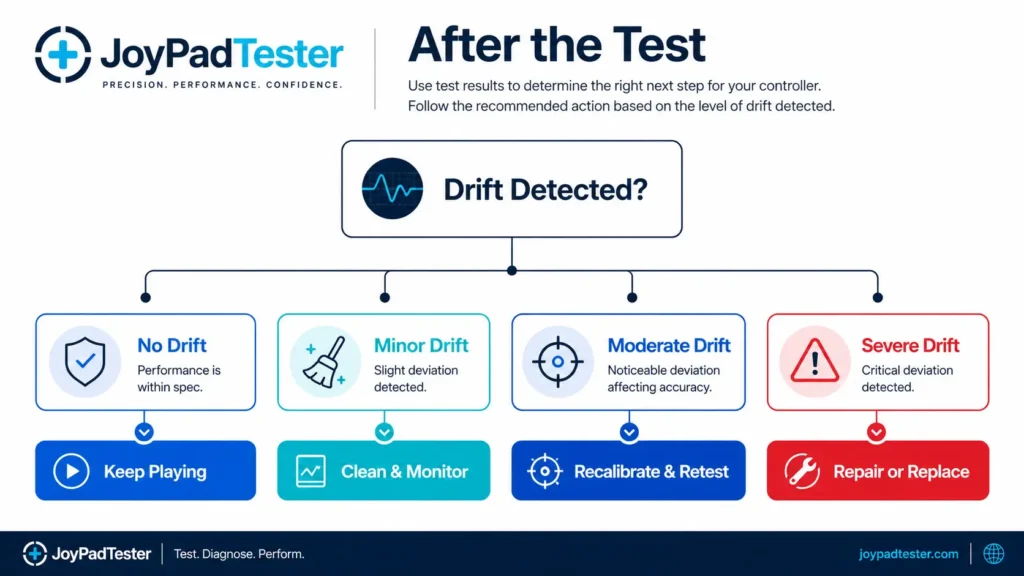
Once drift is confirmed, your next step depends on severity.

Minor Drift

  • Adjust dead zones
  • Clean around the analog stick
  • Monitor regularly

Moderate Drift

  • Use contact cleaner
  • Recalibrate controller
  • Retest after cleaning

Severe Drift

  • Consider analog stick replacement
  • Explore professional repair
  • Evaluate replacement cost

The key is acting early. You can also confirm your defects by clicking here.

The longer drift goes untreated, the worse it becomes. For platform-specific walkthroughs, see our PS5 DualSense drift fix guide and Xbox controller drift fixes, and learn how to prevent stick drift from coming back.

How to Use a Gamepad Tester to Diagnose Drift

Why Competitive Gamers Rely on Gamepad Testers

High-level gameplay depends on consistency.

Elite players constantly refine:

  • Sensitivity
  • Aim mechanics
  • Movement timing
  • Reaction speed

But none of that matters if the controller is unreliable.

Even slight drift:

  • Disrupts muscle memory
  • Breaks aim precision
  • Causes hesitation
  • Reduces confidence

That’s why experienced gamers use tools like Joypad Tester regularly, not just when something feels wrong.

Testing becomes part of their routine. Same rational for Xbox users

How to Prevent Controller Drift Long-Term

Diagnosing drift is only half the battle.

Real Game is preventing it to saves money, time, and frustration.

1. Keep Your Controller Clean

Dust buildup is one of the biggest causes of early drift.

2. Avoid Aggressive Stick Pressure

Hard movements accelerate internal wear.

3. Store Controllers Properly

Leaving controllers exposed increases contamination risk.

4. Check Dead Zones Regularly

Ultra-low dead zones make small issues visible sooner.

5. Test Monthly

Using a joypad tester drift tool regularly helps catch problems early.

This is one of the most overlooked controller maintenance tips and one of the most effective.

The Hidden Danger of Ignoring Early Drift

Most gamers don’t act immediately.

They adapt instead.

They:

  • Adjust aim unconsciously
  • Change sensitivity settings
  • Compensate for movement errors
  • Develop inconsistent muscle memory

Over time, this creates a bigger problem.

You’re no longer improving your gameplay you’re adapting to faulty hardware.

And that slows progress more than most players realize.

Why Testing Online Beats In-Game Guessing

Games are not reliable testing environments.

They:

  • Apply hidden dead zones
  • Use aim assist
  • Smooth camera movement
  • Modify input behavior

That means drift can be:

  • Hidden in one game
  • Amplified in another
  • Misinterpreted entirely

Using a dedicated tool to test controller drift online removes all these variables.

What you see is raw input.

And raw input tells the truth.

Testing Your Controller Should Be Standard Practice

If you’re serious about gaming performance, diagnosing your controller isn’t optional it’s essential.

A joypad tester gives you:

  • Immediate clarity
  • Accurate drift detection
  • Real-time input feedback
  • Confidence in your hardware

Instead of guessing, adjusting blindly, or blaming your mechanics, you get precise answers.

Before you tweak settings, clean your controller, or consider repairs, take one simple step:

Test it.

Use Joypad Tester to see exactly what your controller is doing.

Because once you trust your inputs again, everything else aim, movement, confidence falls back into place

How to Use a Gamepad Tester to Diagnose Drift

FAQ Section

What is a gamepad tester?

A gamepad tester is a tool that shows real-time controller input data, helping you detect drift, dead zone issues, and input instability.

How do I test controller drift online?

Connect your controller to a device and use Joypad Tester to monitor analog stick movement without touching it.

What does controller drift look like in a tester?

The analog stick moves on screen even when untouched, often drifting outside the center dead zone.

How often should I test my controller?

For regular gamers, testing once a month is recommended. Competitive players may test more frequently.

Is drift always a hardware issue?

Not always. Sometimes drift is caused by calibration or sensitivity settings rather than physical damage.

controller input lag test at home

How to Measure Controller Input Lag at Home

Our Controller response time plays an important role in gaming performance. If you are feeling that your actions delayed during gameplay, so your controller may have input lag. So many of the gamers experience this issue without realizing this problem, especially when using wireless controllers or any TVs with high display delay.

You know that good news is when you can perform a simple controller input lag at home without using any expensive equipment.

Practically, using tools like a online joypad tester, so you can quickly identify delay problems and improve your setup.

What Is Controller Input Lag?

Basically, Controller input lag is the time difference between pressing a button and seeing what the action appears on the screen. In every gaming setup there has some delay issues, but high input lag can make you feels that games is slow and unresponsive.

So, there are the games in which we face that issue become more noticeable such as:

  • Racing games
  • Shooting games
  • Fighting games
  • Sports games
  • Competitive multiplayer games

You know even a small delay can affect aiming, movement, and reaction speed.

Common Causes of Controller Input Lag

Before you measure input lag it helps to understand what causes it. Several factors can increase controller delay.

Wireless Connection Delay

The difference is that Bluetooth controllers are convenient, but the wireless signals can make small delays compared to the wired connections.

TV or Monitor Processing

Some TVs add extra image processing that increases response time. Gaming monitors usually have lower latency.

Low Controller Battery

A weak battery may affect wireless performance and create unstable input response.

Background Applications

Unfortunately, Programs running in the background on your PC or console that can sometimes slow down your system performance.

Poor USB Cable Quality

Cheap or damaged USB cables may cause connection issues and slower controller response.

Wired vs Wireless Controller Performance

Method 1: Use an Online Joypad Tester

The easiest way to perform a controller input lag test with an online joypad tester. See our online tester vs software comparison for more details.

H3: Steps to Follow

  1. Connect your controller to your PC or laptop
  2. Open a browser-based joypad tester
  3. Press different controller buttons
  4. Move analog sticks repeatedly
  5. Watch how quickly the input appears on screen

A good joypad tester shows button response instantly. If you notice that delayed reactions or missed inputs, so it’s meant your controller setup may have high latency. This method is very simple, beginner-friendly, and works with most modern controllers. To test all controller inputs thoroughly, use our detailed guide.

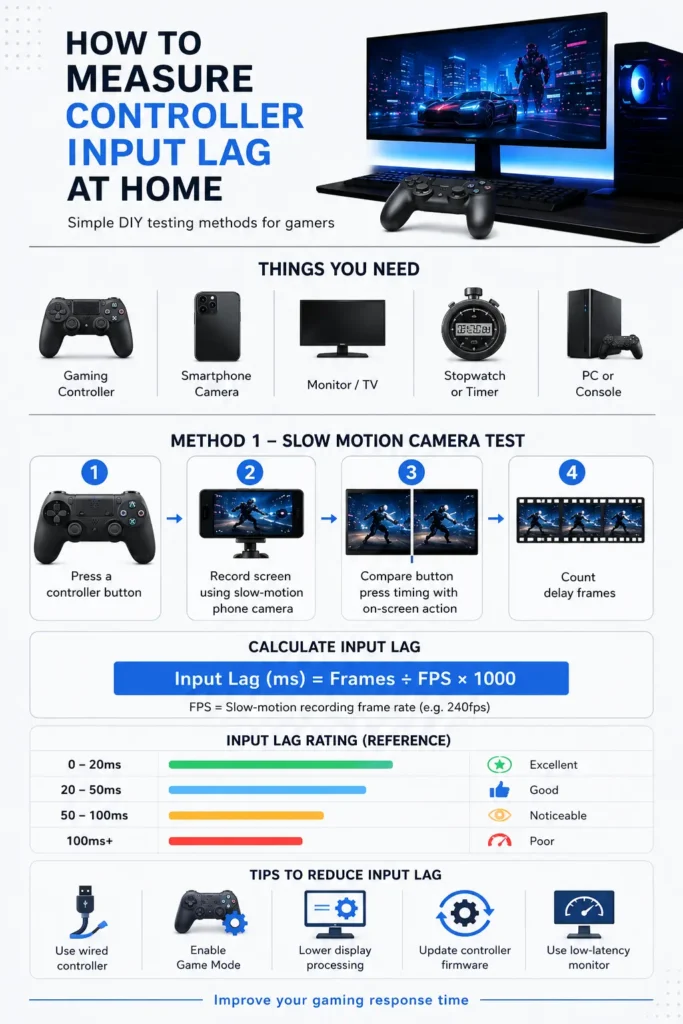
Slow-Motion Camera Test

Another popular way to measure input lag is by recording your controller in slow motion.

How to Do It

  1. Open a game or input tester
  2. Use your phone’s slow-motion camera mode
  3. Record both the controller and display together
  4. Press a button several times
  5. Review the video frame-by-frame

Basically, this helps you to analyse what exact delay difference between button press and on-screen action.

Most of the gamers use this method because it gives more accurate results than normal visual testing.

Wired vs Wireless Controller Performance

A wired controller usually has lower input delay than a wireless one.

Wired Controllers

  • Faster response time
  • Stable connection
  • Better for competitive gaming
  • Reduced signal interference

Wireless Controllers

  • More comfortable to use
  • Cleaner gaming setup
  • Slightly higher latency in some cases

You can compare both modes using a joypad tester to find the best option for your gaming setup.

Tips to Reduce Controller Input Lag

After you measure input lag, you can improve performance with a few simple changes.

  • Use a Wired Connection
  • Enable Game Mode
  • Update Firmware
  • Reduce Wireless Interference
  • Close Unnecessary Apps

Why Input Lag Testing Matters

A proper controller input lag test can improve your gaming experience significantly. Faster response time helps with:

  • Better aiming accuracy
    • Faster movement reactions
    • Improved competitive gameplay
    • More consistent controls
    • Smoother gaming performance

Even casual gamers can notice the difference after reducing controller delay.

InfoGraphics

Conclusion

So, we learn how to measure input lag at home is very easy and useful for every gamer. Whether you are using a joypad tester or a slow-motion camera test, so checking controller response time can help identify performance issues quickly.

A beneficial and simple controller input lag test that allows you to optimize your setup, reduce delay, and enjoy smoother gameplay without expensive tools or professional equipment.

controller drift repair

Controller Drift Repair: DIY Fixes Under $20 vs $80 Pro Repairs

The Real Cost of Controller Drift Isn’t the Repair Bill

You’re halfway through a ranked match.

Your aim drifts slightly right.

You correct it.

Then it happens again.

At first, you think your mechanics are off. Maybe your reaction time slipped. Maybe your sensitivity settings changed after an update.

But deep down, you already know the truth.

Your controller is drifting.

And now you’re stuck asking the question every gamer eventually faces:

Should you repair it yourself… or pay for professional controller repair?

That decision matters more than most players realize. Choose wrong, and you either waste money on temporary fixes or accidentally destroy a controller trying to save a few dollars.

The good news?

Not every drift problem requires expensive repair. In fact, many early-stage issues can be fixed cheaply at home if you know what actually works and what’s just internet myth.

This guide breaks down the real controller drift repair cost, compares DIY fixes against professional repair services, explains when contact cleaner helps, and shows which option makes the most financial sense for serious gamers.

What Causes Controller Drift in the First Place?

Before comparing repair costs, it’s important to understand what actually causes drift.

Controller drift happens when the analog stick sends movement input even while untouched and there is no physical input at all present.

Common symptoms include are:

  • Character movement without input
  • Camera panning on its own
  • Unstable aiming
  • Menu scrolling automatically
  • Inconsistent directional control

The root causes are usually one of four things:

1. Dust and Debris

Microscopic particles collect around the analog stick housing and interfere with sensor readings.

2. Potentiometer Wear

Analog sticks use mechanical sensors that physically wear down over time.

3. Dead Zone Exposure

Low dead zone settings make tiny imperfections visible.

4. Calibration Errors

Firmware or software instability can occasionally mimic hardware drift. Create confusion that hardware is not working while it’s all about firmware or software.

Understanding which category your issue falls into determines whether DIY repair is realistic or whether professional repair becomes necessary. Make things clear and fast.

Average Controller Drift Repair Cost

Professional controller drift repair pricing varies depending on:

  • Controller type
  • Severity of drift
  • Replacement parts needed
  • Repair location
  • Warranty coverage

Most professional repairs fall within these ranges:

Repair TypeTypical Cost
Basic Cleaning & Recalibration$20–$30
Analog Stick Replacement$35–$60
Hall Effect Stick Upgrade$60–$100+
Full Controller Refurbishment$50–$90
New Controller Replacement$60–$200+

Several repair providers and repair guides place standard professional drift repairs around the $30–$60 range for common controllers.

For many gamers, that creates a difficult decision:

Spend nearly half the price of a new controller or attempt a DIY fix first.

DIY Controller Drift Repair: Is It Actually Worth It?

For minor drift, DIY repair is often the smartest starting point. For a platform-specific example, see our PS5 drift fix walkthrough.

Why?

Because many early-stage drift issues aren’t permanent hardware failures. They’re caused by contamination, calibration instability, or sensor buildup.

That means inexpensive fixes can sometimes restore the controller completely.

DIY Fix #1: Contact Cleaner

Difficulty: Easy

Cost: $8–$15

Success Likelihood: Moderate to High

Best For:

Minor drift caused by debris

One of the most popular DIY solutions involves using electronic contact cleaner around the analog stick housing.

Community discussions and repair guides frequently mention contact cleaner as an effective short-term fix for contamination-related drift.

However, there’s an important catch:

If the internal potentiometer is physically worn out, contact cleaner becomes temporary at best. Several gamers report drift eventually returning after cleaning.

Best Contact Cleaner for Drift

When choosing a contact cleaner controller solution, safety matters.

Regular WD-40 is NOT safe for controllers.

You specifically need electronics-safe contact cleaner designed for plastic-sensitive components.

Popular gamer-recommended options include:

The best contact cleaner for drift should:

  • Dry quickly
  • Leave no residue
  • Be plastic safe
  • Evaporate completely
  • Be designed for electronics

Basic Cleaning Process:

  1. Turn off the controller
  2. Tilt the analog stick sideways
  3. Spray lightly around the stick base
  4. Rotate the stick repeatedly
  5. Allow several minutes to dry
  6. Retest controller input

Using Joypad Tester after cleaning helps confirm whether the drift improved or if deeper repair is necessary

DIY Fix #2: Calibration and Dead Zone Adjustment

Difficulty: Very Easy

Cost: Free

Success Likelihood: High for Small Drift

Sometimes the controller itself isn’t badly damaged.

Instead, ultra-low dead zones expose tiny sensor inconsistencies.

Slightly increasing dead zones can eliminate visible drift immediately.

Testing tools like Joypad Tester help gamers identify exactly when unwanted movement disappears.

This is one of the cheapest and safest fixes available.

DIY Fix #3: Full Analog Stick Replacement

Difficulty: Hard

Cost: $15–$35

Success Likelihood: High

Risk: Moderate to High

Replacing the analog stick module manually is where DIY repair becomes risky.

You’ll usually need:

  • Precision screwdriver kits
  • Soldering equipment
  • Replacement modules
  • Anti-static protection

Repair guides estimate DIY replacement success rates can exceed 85% when done correctly but improper soldering or cheap replacement parts can permanently damage the controller. For beginners, this is where confidence often collides with reality.

Why Professional Controller Repair Costs More

At first glance, professional repair pricing can seem expensive.

But you’re not just paying for replacement parts.

You’re paying for:

  • Diagnostic testing
  • Proper calibration
  • Anti-static handling
  • Precision soldering
  • Quality replacement modules
  • Labor experience
  • Warranty protection

Many professional repair shops also replace the entire analog module rather than attempting temporary fixes. That usually creates longer-lasting results.

When Professional Controller Repair Is Worth It

Professional repair makes the most sense when:

  • Drift is severe
  • DIY cleaning failed
  • The controller is expensive
  • You own premium controllers
  • You lack soldering experience
  • The controller has sentimental or competitive value

For esports players and competitive gamers, reliability matters more than anything else. An unstable controller destroys consistency. Learn the 5 signs you need professional repair to decide with confidence.

And consistency is everything in high-level gameplay.

DIY vs Professional Repair Comparison

FactorDIY RepairProfessional Controller Repair
Upfront CostVery LowModerate
Skill RequiredBeginner to AdvancedNone
Risk LevelMediumLow
Repair SpeedImmediate1–7 Days
Long-Term ReliabilityModerateHigh
Warranty ProtectionNoneUsually Included
Best ForMinor DriftSevere Drift

The Hidden Risk Most Gamers Ignore

A failed DIY repair doesn’t just waste time.

It can permanently increase the final repair cost.

During first-time disassembly attempts broken ribbon cables, stripped screws, cracked housings, and damaged circuit boards are common mistakes . Some repair sources warn that inexperienced repairs frequently worsen controller damage or can be results in complete break down even at first.

That’s why the smartest strategy is usually:

  1. Try low-risk DIY fixes first
  2. Avoid deep disassembly unless experienced
  3. Escalate to professional repair if drift persists

Why Some Contact Cleaner Fixes “Work” Then Fail Later

One of the biggest misconceptions online is that contact cleaner permanently repairs all drift.

It doesn’t.

Here’s why:

If drift comes from contamination, cleaning removes the interference and restores normal behavior.

But if the potentiometer itself is worn down, the cleaner only masks symptoms temporarily.

That’s why many gamers experience:

  • Immediate improvement
  • A few weeks of stability
  • Drift slowly returning again

Reddit discussions repeatedly describe contact cleaner as a useful but often temporary solution for severe hardware wear. Understanding this distinction saves gamers from irrational and impractical demands.

How to Decide:You should Repair or Replace?

Here’s the simplest decision framework:

Choose DIY Repair If:

  • Drift is minor
  • The controller is newer
  • You want the cheapest option
  • You’re comfortable with maintenance
  • Cleaning improves symptoms

Choose Professional Repair If:

  • Drift is severe
  • DIY methods failed
  • You own premium controllers
  • Precision matters competitively
  • The controller still has long-term value

Replace the Controller If:

  • Repair costs approach replacement price
  • Multiple components are failing
  • The controller is very old
  • Structural damage exists

Preventing Drift Saves More Money Than Repairing It

The cheapest controller drift repair cost is the one you never have to pay.

Preventive habits matter more than most gamers realize. For a complete routine, follow our drift prevention tips.

Keep Controllers Clean

Dust accumulation accelerates sensor contamination.

Avoid Aggressive Stick Pressure

Excessive force dramatically increases potentiometer wear.

Store Controllers Properly

Open-air storage exposes controllers to debris and humidity.

Test Inputs Regularly

Using Joypad Tester helps identify small drift before it becomes severe.

Expert players monitor controller performance consistently that extend controller lifespan significantly.

Final Verdict: Start Cheap, Escalate Smart

Most gamers don’t need professional repair immediately.

Early-stage drift is often fixable with:

  • Cleaning
  • Contact cleaner
  • Calibration
  • Dead zone adjustments

These low-cost fixes can  solve a surprising number of controller problems for only under $20.

But once severe hardware wear appears, professional controller repair becomes the smarter long-term investment—especially for gamers who rely on precision and consistency.

The key is accurate diagnosis.

Before spending money, test your controller properly using Joypad Tester to determine whether your issue is minor contamination or deeper hardware failure.

Because the difference between a $10 fix and a $70 replacement often comes down to catching drift early.

Frequently Asked Questions

How much does controller drift repair cost?

A good and standard controller drift repair usually costs between $30 and $80 depending on the controller type and severity of the issue. It can also be depend on the expertise of person and can vary person to person.

Is professional controller repair worth it?

Yes, Professional repairs often last longer and include warranties. Especially for premium or expensive controllers it totall worth it.

Does contact cleaner fix controller drift?

Contact cleaner can help remove dust and debris causing minor drift, but it may only be temporary if internal sensors are worn.

What is the best contact cleaner for drift?

Electronic Cleaners like WD-40 Specialist Contact Cleaner and CRC QD are commonly recommended for controller cleaning because these are Electronics-safe contact cleaners.

Can I repair controller drift myself?

Yes. Minor drift can generally be fixed with cleaning, recalibration, and dead zone adjustments. Advanced repairs may require soldering skills but usually can be done inperson.

How do I test if my controller is drifting?

You can use Joypad Tester to monitor live analog stick movement and detect unwanted input.

5 Fast Methods That Work

Xbox Controller Drift Fix: 5 Fast Methods That Work

You line up the perfect shot.

Your crosshair drifts slightly left.

You correct it. It drifts again.

Unexpectedly, a ranked match turns into frustration, missed reactions, and the feeling that your controller instead of working with you is fighting against you.

For competitive gamers, few issues feel more exasperating and maddening than Xbox stick drift. It’s subtle at first. A small movement. A slow camera pan. Random character movement when your hands are completely off the controller.

Then it gets worse.

What makes drift especially dangerous is how easily players blame themselves before realizing the controller is the problem. Your mechanics feel off. Aim confidence disappears. Movement timing becomes inconsistent. In fast-paced shooters and competitive games, that tiny input error can completely destroy performance.

The good news? Most drift problems can be reduced or even fixed entirely without opening your controller or using tools.

This guide breaks down the fastest xbox controller drift fix methods that actually work, why drift happens, and how to prevent it from coming back.

What Is Xbox Stick Drift?

Xbox stick drift happens when your analog stick sends movement input even when untouched.

Instead of returning perfectly to center, the stick registers unwanted movement because of:

  • Dust buildup
  • Sensor wear
  • Static interference
  • Calibration issues
  • Dead zone misconfiguration
  • Internal potentiometer degradation

The result is unintended camera movement, character walking, or inaccurate aiming.

You’ll notice symptoms like:

  • Crosshair slowly moving by itself
  • Characters walking without input
  • Inconsistent aim tracking
  • Delayed stopping movement
  • Menu navigation issues
  • Overcorrection during precision gameplay

Many gamers assume the controller is permanently damaged. But in reality, software and debris-related issues cause a large percentage of early-stage drift problems.

That’s why fast diagnosis matters.

First Step: Confirm the Drift Is Real

Before attempting any fix, test your controller properly. To confirm drift with an online gamepad tester, follow our full diagnosis walkthrough.

A surprising number of players confuse low dead zones or game sensitivity settings with true hardware drift.

Using a controller testing tool like Joypad Tester helps you instantly see whether your analog sticks are moving when untouched.

This matters because drift isn’t always visible in-game. Some games hide minor stick movement with built-in dead zones, while others exaggerate it.

A proper test gives you:

  • Real-time analog stick readings
  • Dead zone visibility
  • Input accuracy tracking
  • Trigger and stick responsiveness
  • Clear confirmation of hardware instability

For competitive players, this removes guesswork completely.

Before testing, check if your controller is still within Microsoft’s warranty period if so, a free replacement may be available

Fix #1: Rotate the Analog Stick Aggressively

Intensity: Very Easy

Total Duration:  30 Seconds

Success Likelihood: High for Minor Drift

Warning:

Avoid excessive force.

One of the fastest fixes for xbox stick drift is also the simplest.

Push the analog stick outward and rotate it in full circles several times. Then repeat in the opposite direction.

Why this works:

Dust and microscopic debris often build up around the stick sensor housing. Rotating the stick can temporarily dislodge particles interfering with sensor readings.

Steps:

  1. Turn off the controller
  2. Push the thumb stick outward gently
  3. Rotate clockwise and then counter clockwise
  4. Each side for 15 seconds
  5. Test using Joypad Tester

Many gamers are shocked at how often this instantly reduces small drifting issues.

If your drift disappears temporarily but later returns, buildup is likely the cause.

Fix #2: Blow Air Around the Stick Base

Intensity: Easy

Total Duration: 1 Minute

Success Likelihood: Moderate to High more than 40 % but less than 70%

Warning:

Be concious about moisture and do not use excessive moisture.

Tiny dust particles are the silent killer of controller precision.

Even in clean gaming setups, sweat particles, fabric fibers, skin debris, and dust slowly work their way beneath the analog stick.

Without opening the controller, you can still clear some of this contamination.

What to Do:

  1. Rotate the stick fully
  2. Blow compressed air or short bursts of air around the base
  3. Move the stick in all directions while cleaning
  4. Retest immediately

If you don’t have compressed air, controlled blowing can still help.

This method is especially effective for:

  • FPS gamers
  • High-hour controllers
  • Controllers stored uncovered
  • Drift that appears suddenly

Fix #3: Reset the Xbox Controller

Intensity: It is very Easy

Total Duration: Only 2 Minutes

Success Likelihood: Moderate

Warning:

Reconnect pairing afterward.

Software glitches occasionally mimic hardware drift.

A reset clears temporary firmware communication issues and recalibrates certain controller behaviors.

For users comfortable with light disassembly, iFixit’s no-solder repair guide covers the next step.

How to Reset:

  1. Hold the Xbox button for 10 seconds
  2. Wait until the controller fully powers off
  3. Restart the console or PC
  4. Reconnect the controller
  5. Retest drift
  6. This fix won’t solve worn sensors, but it often helps with:
  7. Random input spikes
  8. Inconsistent stick movement
  9. Wireless interference behavior

Fix #4: Adjust Dead Zones Properly

Intensity: It is easy

Total Duration: 3 Minutes

Success Likelihood:  Very High for Small Drift

Warning:

Too much dead zone hurts precision.

Many competitive players unintentionally create “fake drift” by lowering dead zones too aggressively.

Lower dead zones increase responsiveness but also expose tiny imperfections in the stick sensor.

That means ultra-low settings can turn invisible wear into noticeable movement.

  • Competitive FPS: 5–10%
  • Racing games: 3–7%
  • Casual gaming: 10–15%

If your controller only drifts slightly, increasing dead zones by a few points may completely eliminate the issue.

This is one reason professional gamers constantly monitor controller performance.

Using Joypad Tester makes dead zone tuning dramatically easier because you can visually see when the stick stabilizes.

Fix #5: Disconnect Nearby Wireless Devices

Intensity: It is easiest

Total Duration: Within no time

Success Likelihood: About 30% – 40 % which is Low to Moderate

Warning:

Mostly affects wireless controllers.

Bluetooth and wireless interference occasionally create erratic controller behavior mistaken for drift.

Try temporarily disconnecting:

  • Nearby Bluetooth devices
  • Wireless headphones
  • Additional controllers
  • USB hubs
  • Signal-heavy peripherals

Then reconnect only the Xbox controller and test again.

This fix matters more for PC players than console users.

When Xbox Stick Drift Becomes Permanent

Sometimes drift isn’t temporary.

Over time, the analog stick potentiometers physically wear down.

This usually happens after:

  • Thousands of gameplay hours
  • Aggressive thumb stick pressure
  • Competitive shooter grinding
  • Frequent clicking movement
  • Repeated directional stress

Once internal wear reaches a certain point, temporary fixes become less effective.

Signs of permanent hardware drift include:

  • Drift worsening rapidly
  • Large uncontrolled movement
  • Drift returning immediately after cleaning
  • Severe diagonal instability
  • Constant input registration

At that stage, repair or replacement may be necessary.

DIY Fix vs Professional Repair

FactorDIY Drift FixProfessional Repair
CostFree or very cheapModerate
Time5–10 minutesSeveral days
RiskLow
Low
Best ForMinor drift
Severe drift
Requires Opening ControllerNo
Usually yes
Skill NeededBeginner-friendly
Technical

Why Competitive Players Notice Drift Faster

Casual gamers sometimes tolerate minor stick inconsistencies for months.

Professional and high-level players notice it almost immediately.

Why?

Because elite gameplay relies on:

  • Micro-adjustments
  • Tracking precision
  • Muscle memory consistency
  • Fast directional correction
  • Stable aiming mechanics

Even slight drift disrupts performance confidence.

That loss of trust is what makes controller issues psychologically exhausting. You hesitate before shots. You second-guess movement. You blame yourself for mistakes caused by hardware. That’s why routine controller testing has become increasingly important in competitive gaming setups

Xbox Drift vs PS5 Controller Drift

Interestingly, there are many correspondences in issues xbox stick drift and PlayStation 5 DualSense Wireless Controller drift have.

Gamers searching for a PS5 DualSense drift fix guide generally encounter the same root causes:

  • Sensor wear
  • Debris contamination
  • Dead zone imbalance
  • Potentiometer degradation

The biggest difference usually comes down to stick tension and controller design preferences.

That means many prevention methods work universally across:

  • Xbox controllers
  • PS5 controllers
  • Competitive pro controllers
  • PC gamepads

How to Prevent Stick Drift Long-Term

The best fix is avoiding drift in the first place.

Keep Controllers Covered

Dust accumulation is one of the biggest causes of early sensor problems.

Avoid Excessive Force

Aggressive stick slamming accelerates wear dramatically.

Clean Monthly

Quick maintenance prevents buildup from becoming internal contamination.

Monitor Dead Zones

Ultra-low dead zones increase sensor strain visibility.

Test Regularly

Using Joypad Tester every few weeks helps catch drift before it becomes severe.

This is especially important for:

  • Ranked players
  • FPS competitors
  • Streamers
  • E-sports athletes

The Hidden Cost of Ignoring Drift

Most gamers wait too long before addressing controller problems.

They adapt unconsciously:

  • Overcorrecting aim
  • Compensating movement
  • Changing sensitivity settings
  • Altering muscle memory

The longer this continues, the harder it becomes to separate player mistakes from hardware failure.

That’s dangerous for improvement-focused gamers because performance analysis becomes inaccurate.

A drifting controller creates false feedback.

And false feedback slows improvement.

Most Xbox Stick Drift Can Be Reduced in Minutes

If your controller recently started drifting, don’t assume it’s permanently ruined.

Many xbox stick drift problems come from:

  • Dust buildup
  • Minor calibration issues
  • Dead zone settings
  • Temporary sensor interference

In the majority of cases, these fastest fixes take less than five minutes and require zero tools.

Start with:

  • Stick rotation
  • Air cleaning
  • Controller reset
  • Dead zone adjustment
  • Input testing

Most importantly, verify the issue before replacing your controller. If a fix isn’t possible, check our repair cost comparison before paying for service.

Using Joypad Tester gives you immediate clarity on whether your controller is stable, drifting, or beginning to wear out.

For serious gamers, consistency matters. Precision matters. Confidence matters. And sometimes, fixing your gameplay starts with fixing the controller in your hands

FAQ Section

What are the major causes of Xbox controller drift?

Here are the usual cases of Xbox controller drift:

  1. Dust buildup, worn analog stick sensors
  2. dead zone misconfiguration
  3. internal potentiometer wear from long-term gameplay

Can xbox stick drift fix itself?

Minor drift caused by debris or calibration issues can temporarily disappear, but  hardware problems usually worsens over time if  left untreated.

Is controller drift permanent?

Not always. Severe hardware wear may require repair or replacement but early-stage drift is usually fixable with cleaning, recalibration, or dead zone adjustments.

How do I test stick drift accurately?

You can test stick drift using Joypad Tester to monitor live analog stick movement and dead zone behavior.

Does low dead zone cause drift?

Low dead zones don’t create drift directly, but they expose tiny sensor imperfections that become visible during gameplay.

Can compressed air fix controller drift?

Compressed air can help remove debris around the analog stick housing and often improves minor drift issues without opening the controller.

Signs Your Controller Needs Professional Repair

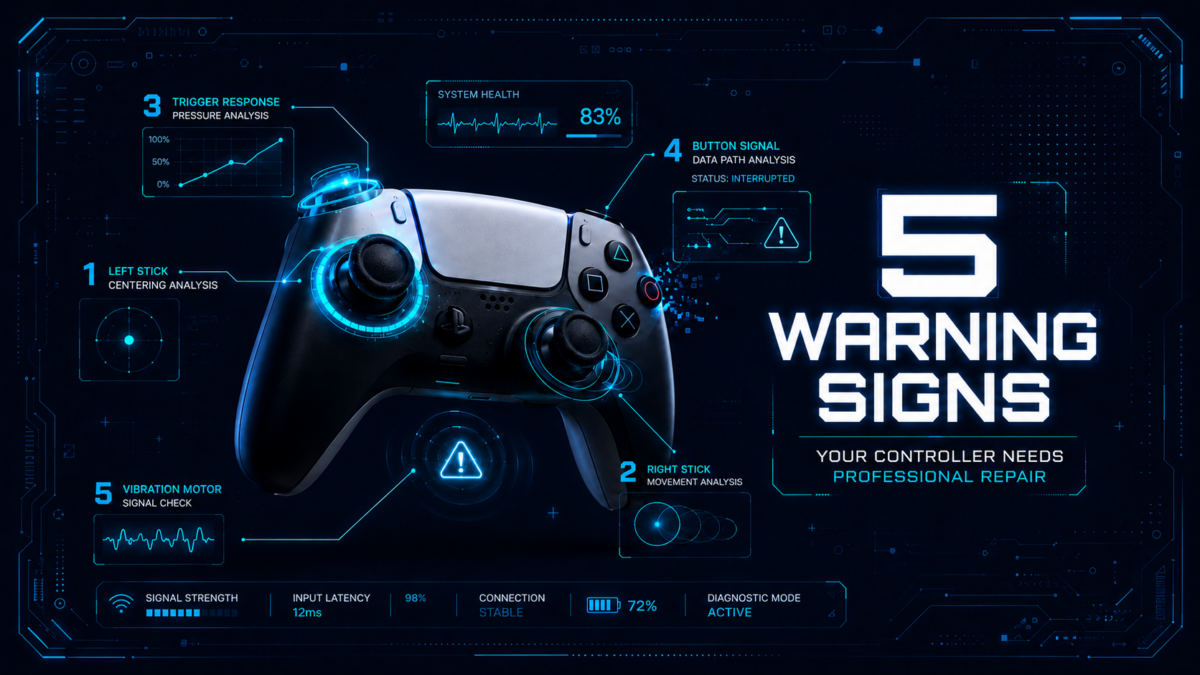
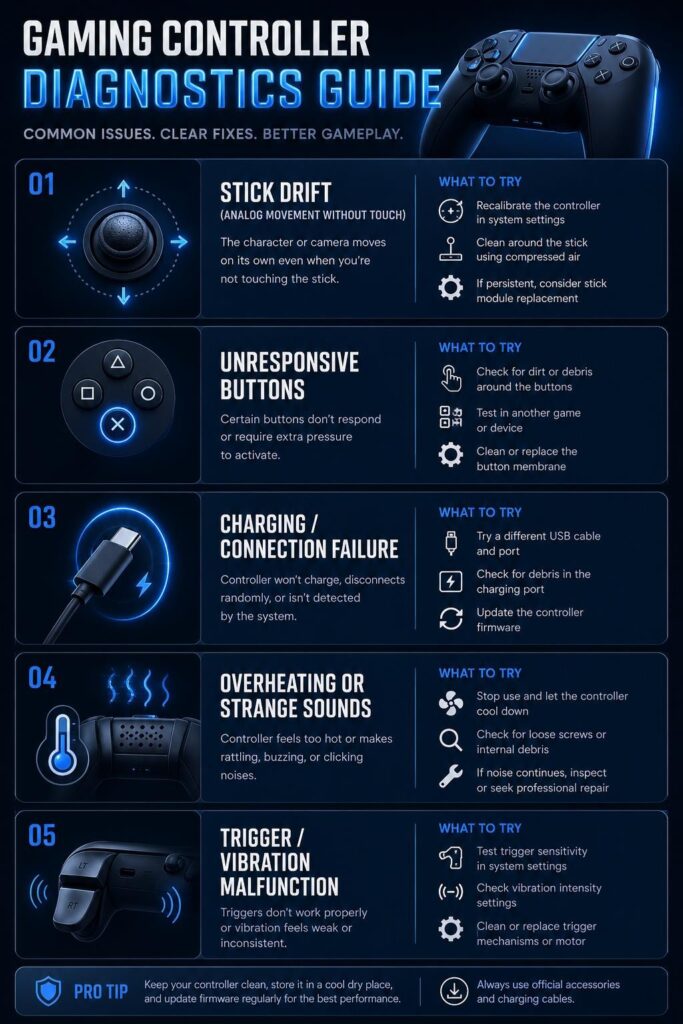
5 Signs Your Controller Needs Professional Repair

5 Signs Your Controller Needs Professional Repair – Fix Controller Issues Fast

Is your controller showing signs of trouble? From stick drift to unresponsive buttons, these controller issues are easy to ignore at first but they rarely fix themselves. Knowing the common controller repair signs early can save you from costly replacements. Whether your gamepad tester is showing input errors or you are unsure about when to repair controller problems, acting fast always helps. Here we cover 5 signs your controller needs professional repair so you can protect your device and get back to gaming without interruptions.

A faulty controller can ruin your gaming experience within minutes. Whether you are using a console controller, joypad, or PC gamepad, small controller issues can quickly turn into serious problems if ignored. Many gamers try to quick-fix their problems using a gamepad tester or joypad tester, but some issues require expert attention. Knowing the early controller repair signs can help you understand when to repair controller problems before they cause permanent damage and save you money in the long run. Here are the 5 signs your controller needs professional repair that every gamer should know. If you suspect drift, test your controller for drift first to confirm the issue.

Here are the important five common signs so that they can help to show when to repair controller issues before they become worse.

1. Buttons Stop Responding Properly

Ater that, one of the most obvious controller repair signs is unresponsive buttons. When you may notice certain buttons that only work after pressing hard, while others

fail completely. This often happens just because of dirt buildup, worn rubber pads, or any internal circuit damage.

If a gamepad tester (https://www.wikipedia.org/ ) still shows delayed or missing button input so it’s meant the basic cleaning may not be enough. The proper professional repair can help us to restore proper responsiveness and prevent complete button failure.

2. Analog Stick Drift Gets Worse

Basically, Stick drift is a frustrating issue where your character or camera moves even when you are not touching the analog stick. Many of the players first notice this while using a joypad tester (https://joypadtester.com/about-joypad-tester/). to check that movement is accurate or not.

Most of the times, Minor drift can be adjusted through software settings, but severe drift usually means that the internal sensors are damaged. This is one of the biggest clues about when to repair controller (https://www.ibm.com/) problems professionally.

Ignoring the frustrating stick drift can eventually make games almost impossible to play it accurately.

3. Charging or Connection Problems

Controllers that randomly disconnect or fail to charge properly may have internal hardware issues. Loose charging ports, damaged batteries, or Bluetooth problems are common causes.

If your controller constantly disconnects during gameplay, it is a strong controller repair sign that should not be ignored. While restarting the device may temporarily help, ongoing connection issues normally require professional repair services.

4. Strange Noises or Overheating

In simple words, a controller should never become excessively hot during normal use. But, clicking noises, rattling parts, or overheating that are the warning signs of internal damage. Because sometimes dropped controllers develop loose components inside the shell.

Most of the gamers often overlook these symptoms because the controller still works partially. However, overheating can damage internal circuits over time that becomes

danger. If you notice unusual sounds or heat, so it’s meant that right time to consider when to repair controller issues before complete failure happens.

5. Trigger or Vibration Malfunctions

Triggers that feel loose or vibration motors that stop working are also important controller repair signs. Basically, racing and shooting games rely heavily on responsive triggers, so even slight delays can affect performance.

Similarly, weak or inconsistent vibration feedback may indicate that motor wear or internal wiring is damage. But a professional technician can replace damaged components and restore the controller’s original feel.

Why Professional Repair Is Better Than DIY Fixes

Many of the gamers attempt home repairs after watching some online tutorials. While simple cleaning is safe, opening modern controllers

(www.joypadtester.com )without proper tools can create additional damage.

H3: Professional repair technicians can

  • Diagnose hidden hardware issues
  • Replace damaged analog modules
  • Repair charging ports safely
  • Fix motherboard-related faults
  • Test performance accurately using advanced tools

Using a joypad tester can help identify basic input issues, but expert repair ensures the controller performs correctly for long-term gaming.

How to Prevent Controller Damage

Preventive care can reduce the repairing costs and also extend controller lifespan. See our breakdown of controller drift repair costs for detailed pricing. Here are a few simple tips:

  • Firstly, avoid from dropping the controller
  • Then keep food and liquids away from it
  • Store it in a clean, dry place
  • Clean analog sticks regularly
  • Do not overcharge the battery

Regular maintenance helps detect small problems early before they become major controller repair signs.

Conclusion

At the last, controllers are naturally wearing out over time but especially with heavy gaming sessions. Some problems like stick drift, charging failure, unresponsive buttons, and overheating should never be ignored. Understanding when to repair controller issues that can help us to avoid from expensive replacements and maintain smooth gameplay. If when your gamepad tester or joypad tester shows ongoing input problems, so it’s meant professional repair is often the smartest solution. Early action can restore performance and it’s extend the life of your favourite controller.

FAQs About Joypad Tester

1. What are the most common controller repair signs?

The most common signs include stick drift, unresponsive buttons, charging problems, random disconnections, and faulty triggers.

2. Can a joypad tester detect all controller issues?

A joypad tester can identify input and button problems, but it may not detect internal hardware damage.

3. When should I repair my controller instead of replacing it?

In the simple way, you just need to repair it if the issue is minor, such as stick drift, charging port damage, or button malfunction. You know repairs are often cheaper than buying a new controller.

4. Is stick drift repairable?

Yes, professional technicians can usually repair or replace damaged analog stick components.

5. Why does my controller disconnect randomly?

Random disconnections may happen because of battery problems, Bluetooth interference, or internal hardware faults.

test controller buttons

How to Test Controller Buttons, Triggers,and Analog Sticks

Basically, Gaming controllers can develop issues over time. Sometimes buttons may

stop working also analog sticks may drift, and triggers can become it inaccurate. So, if

you want that game play smoothly than it is important to test your controller regularly.

As you know that we will learn how to test controller buttons, triggers, and analog sticks

online using simple tools. Whether you are using a PlayStation, Xbox, Nintendo Switch,

or PC controller than these testing methods work for almost every device.

Why You Should Test Your Controller

A controller test helps you find hardware problems before they affect your gaming

experience. Many players notice issues like:

• Stuck buttons

• Slow button response

• Analog stick drift

• Trigger sensitivity problems

• Dead zones

• Double-clicking inputs

• Unresponsive controller buttons

Running a controller button test can quickly identify these problems.

1: How to Test Controller Buttons

The easiest way to test controller buttons is by using an online gamepad tester.

Quickly test your controller buttons for smooth and accurate performance.

Steps to Test Controller Buttons

1. Connect your controller to your PC or laptop.

2. Open your controller button test tool.

3. Press each button one by one.

4. Check if the button highlights correctly on the screen.

5. Verify that every input responds instantly.

If a button does not respond or activates twice, your controller may have a hardware

issue.

Common Button Problems

Unresponsive or laggy controller buttons can create a frustrating gaming experience

Sometimes controller buttons may stop responding, register double inputs, or react

slowly over time. Because these issues are often caused by dust, broken switches, or

worn-out button contacts and make annoying. A quick controller button test can help identify the

problem early.

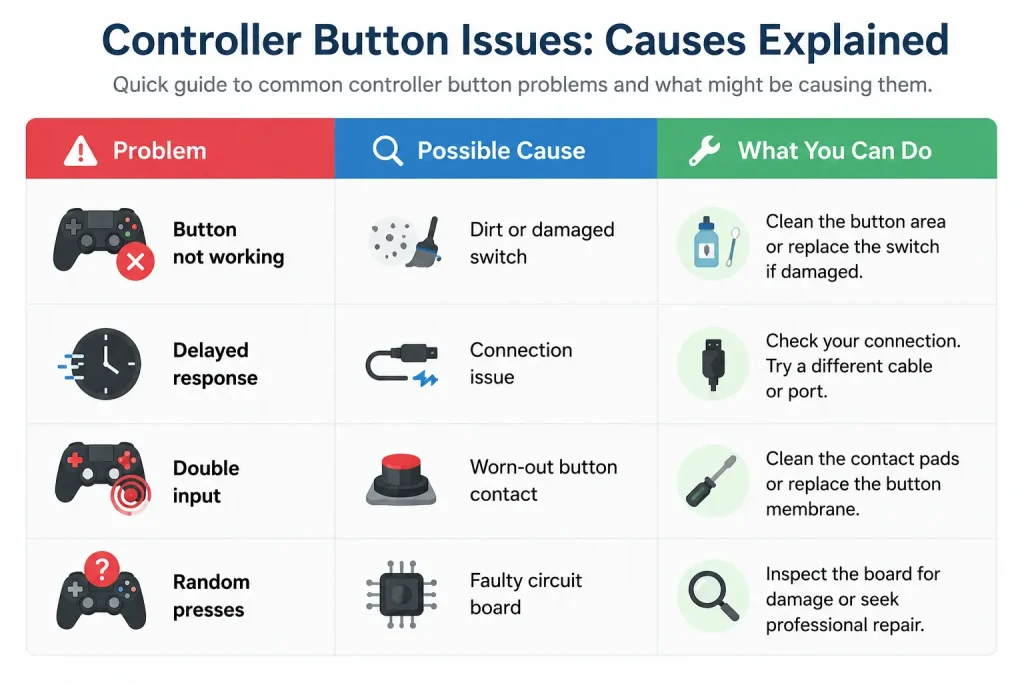
Infographic showing controller button issues, possible causes, and troubleshooting tips for gaming controllers.
Quick guide explaining common controller button problems, their possible causes, and simple troubleshooting solutions.

2: How to Test Controller Triggers

Triggers are important in smooth racing and shooting games because they support pressure

sensitive input.

Steps to Test Controller Triggers

1. Press the left trigger slowly.

2. Watch the trigger value increase smoothly.

3. Repeat with the right trigger.

4. Check if the trigger reaches 100% input.

A good trigger should move smoothly without sudden jumps.

Signs of Trigger Problems

• Trigger not reaching full input

• Input spikes

• Delayed response

• Trigger sticking halfway if you notice these issues, your controller triggers may need cleaning or replacement.

3: How to Test Analog Sticks

Analog stick testing is basically the most important because stick drift is one of the

common controller problems that make frustrating.

Steps to Test Analog Sticks

1. Move the analog stick in all directions.

2. Check if the movement appears smooth.

3. Then release the stick and see if it returns to the centre or not.

4. Look further for any unwanted movement when untouched.

If your cursor moves by itself than your controller likely has stick drift. Learn how to diagnose stick drift with our step-by-step guide.

What Is Stick Drift?

Simply stick drift happens when the analog stick sends you the movement signals even

if you are not touching it.

Common Causes of Stick Drift

• Dust inside the analog module

• Worn sensors

• Physical damage

• Heavy controller usage

Testing your analog sticks regularly can help you detect drift early.

Best Ways to Fix Controller Issues

If your controller fails the controller button test, try these fixes: Clean the Controller

Simply you must use compressed air or a soft cotton swab to clean around the buttons

and analog sticks for improvement.

Restart the Controller

Disconnect and reconnect your controller.

Update Controller Drivers

Outdated drivers can cause input problems on PC.

Calibrate the Controller

Windows and gaming consoles provide built-in calibration tools.

Replace Damaged Parts

Simply if the buttons or any analog sticks are physically damaged than replacement

may be necessary to reduce inconsistency.

Supported Controllers

Most online testing tools support:

• Xbox controllers

• PlayStation controllers

• Nintendo Switch Pro controllers

• Generic USB gamepads

• Bluetooth gaming controllers

Tips for Accurate Controller Testing

To get accurate results during your controller button test:

• Use a wired connection when possible

• Fully charge wireless controllers• Close background apps

• Test every button multiple times

• Check analog stick dead zones carefully. For advanced testing, see stick circularity explained.

Testing game controller buttons, triggers, and analog sticks using a controller diagnostic tool.
A step-by-step guide to testing controller buttons, triggers, and analog sticks for accurate performance and responsiveness.

Frequently Asked Questions About Joypad Tester

How do I test controller buttons online?

Connect your controller to your device and use an online gamepad testing tool to check

button inputs in real time.

Why are my controller buttons not responding?

This can happen just because of dirt, broken switches, driver issues and other

internal hardware failure.

How do I know if my analog stick is drifting?

Simply if your character or cursor moves without touching the stick than your controller

likely has stick drift.

Can I test Xbox and PlayStation controllers online?

Yes, most controller testing tools support Xbox, PlayStation, and other USB controllers.

<
online gamepad tester 

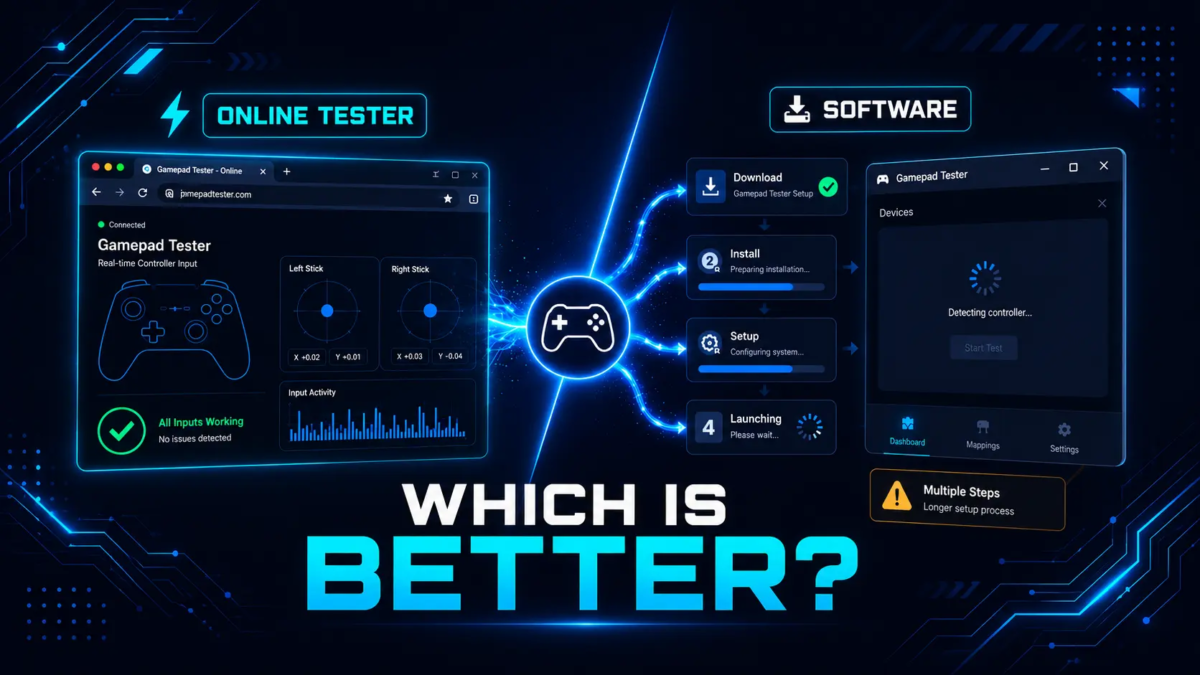
Online Gamepad Tester vs Software: Which is Better? 

Choosing between an online gamepad tester vs software can be confusing, especially if your controller shows stick drift, delayed input or unresponsive buttons. Whether you play on PC, PlayStation, Xbox or Nintendo Switch, the right testing method saves you time. if you play on PC, PlayStation, Xbox, or another Nintendo Switch. Basically, some controllers can develop issues like stick drift, delayed input and after those unresponsive buttons over time. 

To diagnose these problems our gamers usually choose between an online gamepad tester and dedicated controller test software. 

As the results which one is better? 

In this guide, we compare an online gamepad tester vs software, so you can choose the right option for your controller

What Is an Online Gamepad Tester? 

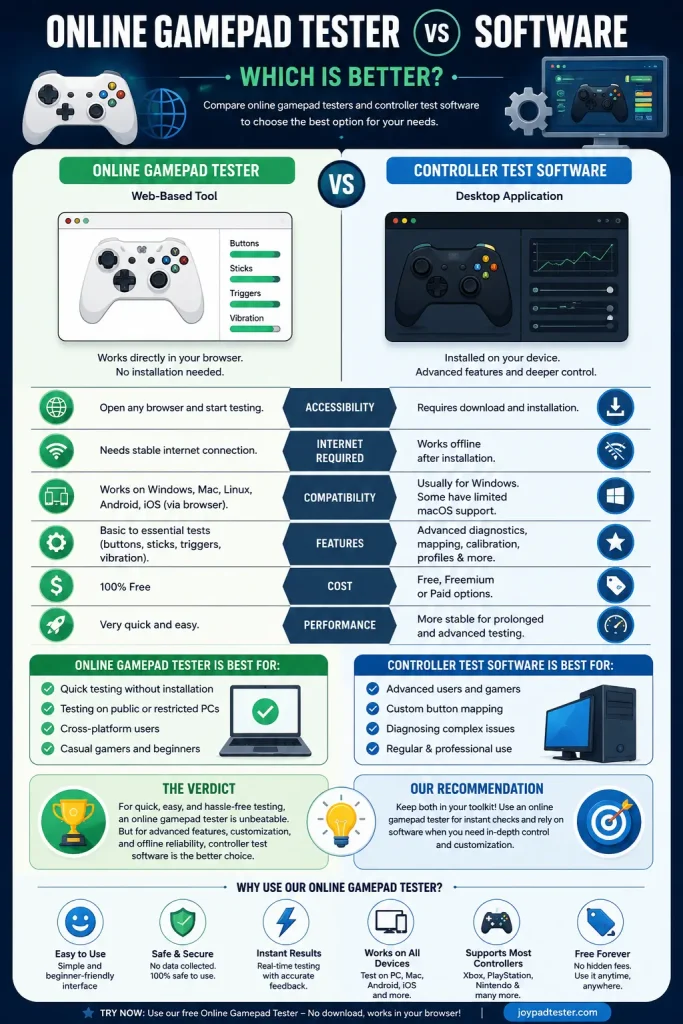
An online gamepad tester is basically a browser-based tool that defines the users to test their controllers smoothly without installing any software.Online Gamepad Tester vs Software: Key Differences

You must simply connect your controller through USB or Bluetooth and open the testing website. So, the tool automatically detects your gamepad and displays button presses, analog stick movement, triggers, and more over vibration feedback. 

Most online testers support: 

  • Xbox controllers 
  • PS4 controllers 
  • PS5 DualSense 
  • Nintendo Switch controllers 
  • Generic USB gamepads 

These tools work directly inside browsers using the Gamepad API.

Online gamepad tester vs software comparison infographic showing features, cost and compatibility

Benefits of Using an Online Gamepad Tester 

1. No Installation Required 

The biggest advantage is convenience. You can test your controller instantly without downloading large files or drivers. 

2. Fast and Easy to Use 

Most browser-based testers have beginner-friendly interfaces. Even non-technical users can quickly identify controller problems. 

3. Great for Stick Drift Testing 

Our browser-based gamepad testing tool can show real-time analog stick movement meanwhile making them ideal for detecting stick drift. 

4. Cross-Platform Compatibility 

On the other hand, we see most of our online tool’s work on Windows, macOS, Linux, and even some Android devices. 

What Is Controller Test Software? 

Controller checker software is a downloadable desktop application designed for advanced diagnostics and calibration. 

Unlike browser tools, these applications often provide deeper hardware analysis. Online Gamepad Tester vs Software: Key Differences 

Advanced controller software may include: 

  • Dead zone calibration 
  • Input latency testing 
  • Firmware checks 
  • Trigger sensitivity analysis 
  • Button mapping 
  • Polling rate monitoring 

These programs are probably used by most competitive gamers, streamers, and repair technicians. When comparing an online gamepad tester vs software, the biggest difference is setup time.

Benefits of Controller Test Software 

1. Advanced Diagnostics 

Desktop applications provide more detailed information than online tools.Online Gamepad Tester vs Software: Key  Differences They can analyze raw controller inputs and hardware performance. 

2. Better for Professional Users 

Competitive gamers and hardware testers often prefer software because it offers more precise calibration and customization options. 

3. Offline Access 

Unlike browser tools, controller software works without an internet connection. 

4. Wider Hardware Support 

Some software tools also support racing wheels, flight sticks, and custom gaming hardware. 

Online Gamepad Tester vs Controller Test Software 

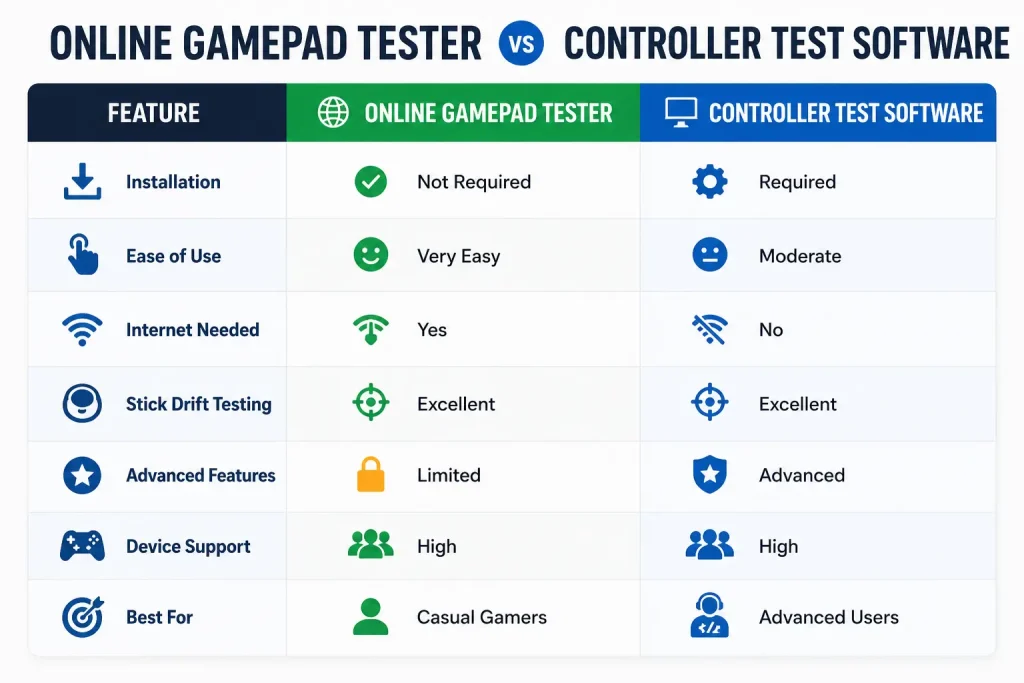
This comparison table highlights the key differences between an gamepad testing online and controller checker. It helps gamers quickly understand which option is better for quick browser-based testing or advanced controller diagnostics and calibration. 

Online Gamepad Tester vs Controller Test Software comparison table showing installation, ease of use, stick drift testing, features, and device support.

Which Option Is Better? 

For most gamers, an online gamepad tester is the better option. 

It is: 

  • Fast 
  • Easy to access 
  • Beginner-friendly 
  • Free to use in most cases 
  • Perfect for quick diagnostics 

Most users simply want to test: 

  • Button response 
  • Trigger sensitivity 
  • Analog stick movement 
  • Bluetooth connectivity 

A browser-based gamepad tester handles these tasks quickly and efficiently. 

However, if you need advanced calibration, firmware analysis, or professional diagnostics, then controller testing platform may be the better choice. 

Are Online Gamepad Testers Accurate? 

Yes. Modern browser-based testers are highly accurate for standard controller testing. 

Thanks to improvements in browser technology and the Gamepad API, users can monitor controller inputs in real time. 

Although advanced software may provide deeper technical analysis, joystick testing tool are reliable enough for everyday gaming diagnostics. 

Final Verdict 

Basically, both online gamepad testers and controller test plateform have their own strengths. 

So, if you want to quick, easy, and simply controller testing, an online gamepad tester is the best solution. 

Also, it works directly in your browser with no requirements, no installation and is ideal for testing stick drift, buttons, triggers, and vibration. 

On the other hand, we know that controller test software is better for advanced users who need professional calibration and hardware diagnostics. 

Honestly, for most gamers, browser-based controller testing tools really provide the best combination of speed, easiness and compatibility. 

Frequently Asked Questions About Joypad Tester 

Can I test my controller online? 

Yes. Online gamepad testers allow users to test controllers directly in a browser without installing software. 

Do online gamepad testers support PS5 controllers? 

Yes. Most modern browser-based testers support PS5 DualSense controllers. 

Can online testers detect stick drift? 

Yes. Most online tools can identify stick drift by showing analog stick movement in real time. 

Is controller testing platform better? 

Controller software is better for advanced diagnostics, while online gamepad testers are better for quick and simple testing. For quick checks, an online gamepad tester vs software comparison favors the browser tool.